Getting started with Ts-Immo
What Ts-Immo is for, what to prepare, and the full path to your first published property.
Ts-Immo is an automatic middleman between the software where you enter your listings — Apimo, Hektor, Netty… also called your "CRM" — and your agency website. Nothing changes in your habits: you keep working in your software, and your website updates itself.
A word stopping you? Open the vocabularyGateway, connector, template, theme… each explained in one sentence.The full path, in 5 steps
- 1
You create your account
An email address, a password, and a click on the verification link you receive. The link expires: if it no longer works, request a new one from the sign-in page.
- 2
You create a gateway
That is the New gateway form. It asks for your plan, your website address, then the software your properties come from and its connection credentials.
- 3
You connect your website
On WordPress, a wizard installs the Ts-Immo Sync plugin and links the site to your gateway. There is no key to copy by hand.
- 4
The first sync runs
It fetches your whole portfolio. Expect a few minutes depending on how many properties and photos you have.
- 5
You check once, then forget about it
Open your website: the properties should be there. After that everything runs in the background — you only come back to the dashboard to check or change things.
Your dashboard
Once signed in, the home page lists your gateways. Each card shows the essentials: the source software, the plan, how many properties are synced, when the last sync ran and how it went.
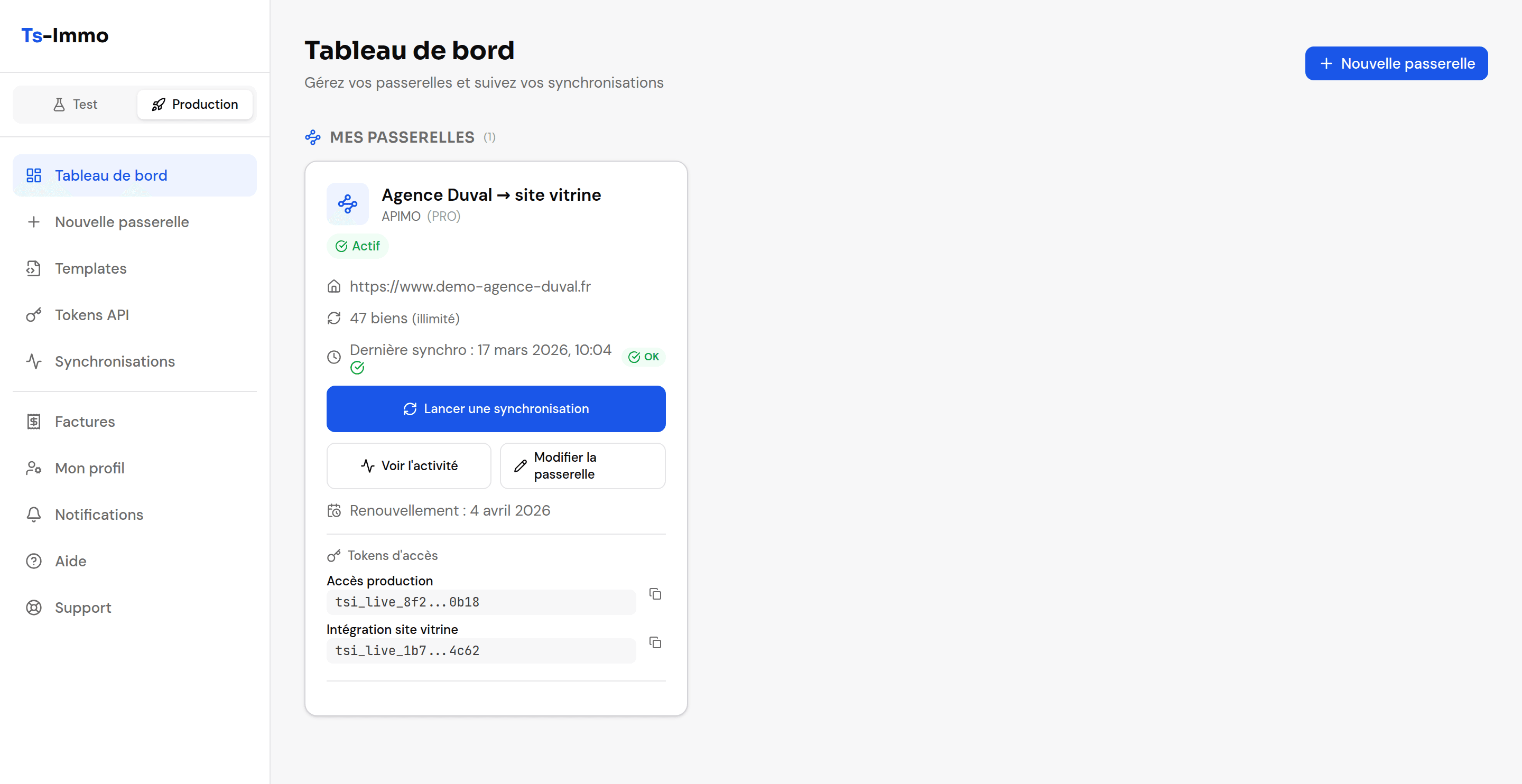
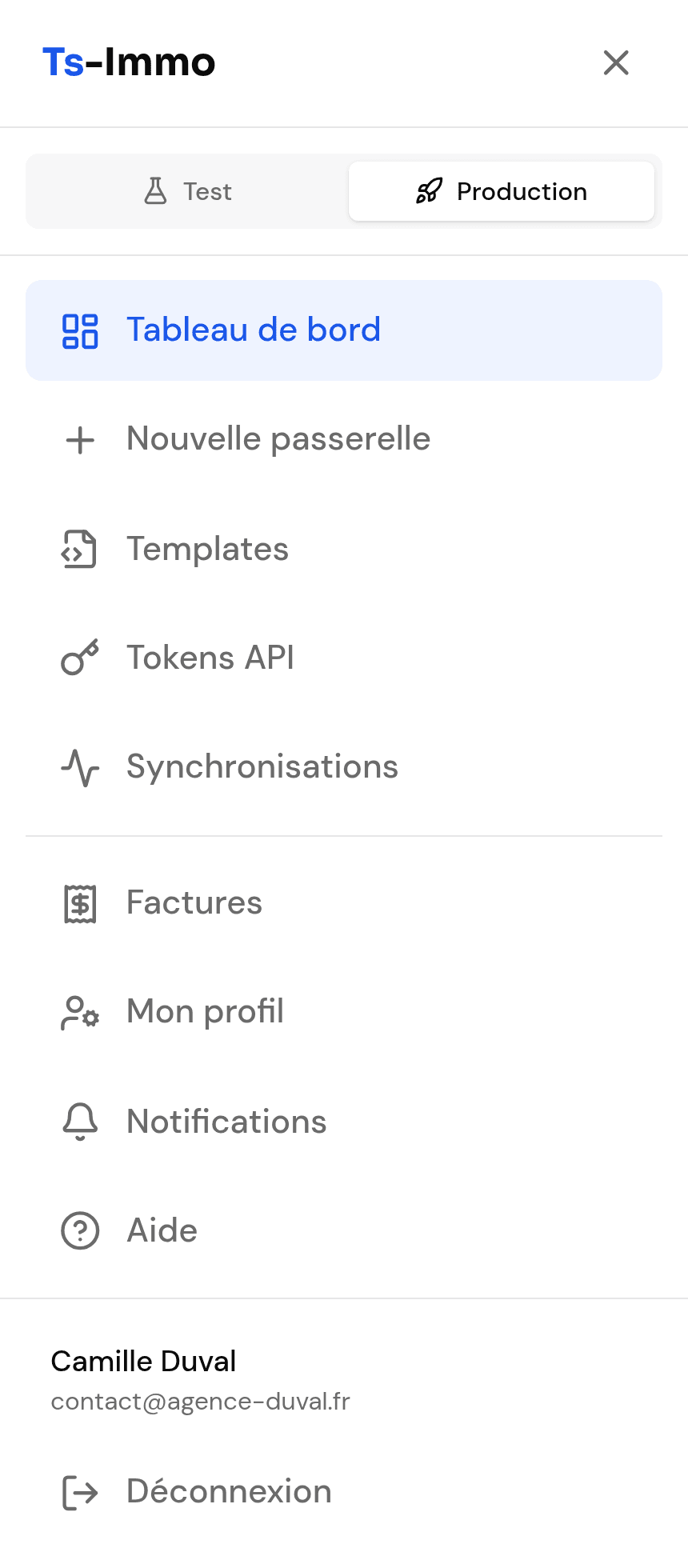
The left menu gives access to the rest, grouped by theme: Properties (all your listings, and the AI assistant when enabled), Gateways (create a gateway, follow syncs, templates), Integrations (API tokens, connecting Claude or ChatGPT), Account (invoices, profile, notifications) and Help (this help center and support). On a phone it opens with the ☰ button at the top left.
What you need before you start
- Your exact website address — with
https://, and the right subdomain (wwwor not). That is where properties get published. - Your listing software credentials: depending on the software, an API key, FTP access, or simply the address of an XML feed. Your vendor provides them on request.
- Administrator access to your WordPress site, if you install the plugin yourself. Otherwise your webmaster can do it for you.